
2 · Mark rooms
Room pins tell Device Floorplan where each Home Assistant area is on the plan. Auto-place uses them to put every device in the right room.
Place the rooms
The right column lists Rooms on this floor: the Home Assistant areas on this floor. Rooms with devices come first; areas without devices are listed under Empty rooms (you can still pin them, their name shows on the card).
- Drag a room onto the plan: the room name lands centred under the pointer, exactly where the card will show it. Drop it in the middle of that room, or
- click a room, then click on the plan. With then next ticked, the next room is picked automatically. Press Esc to stop.
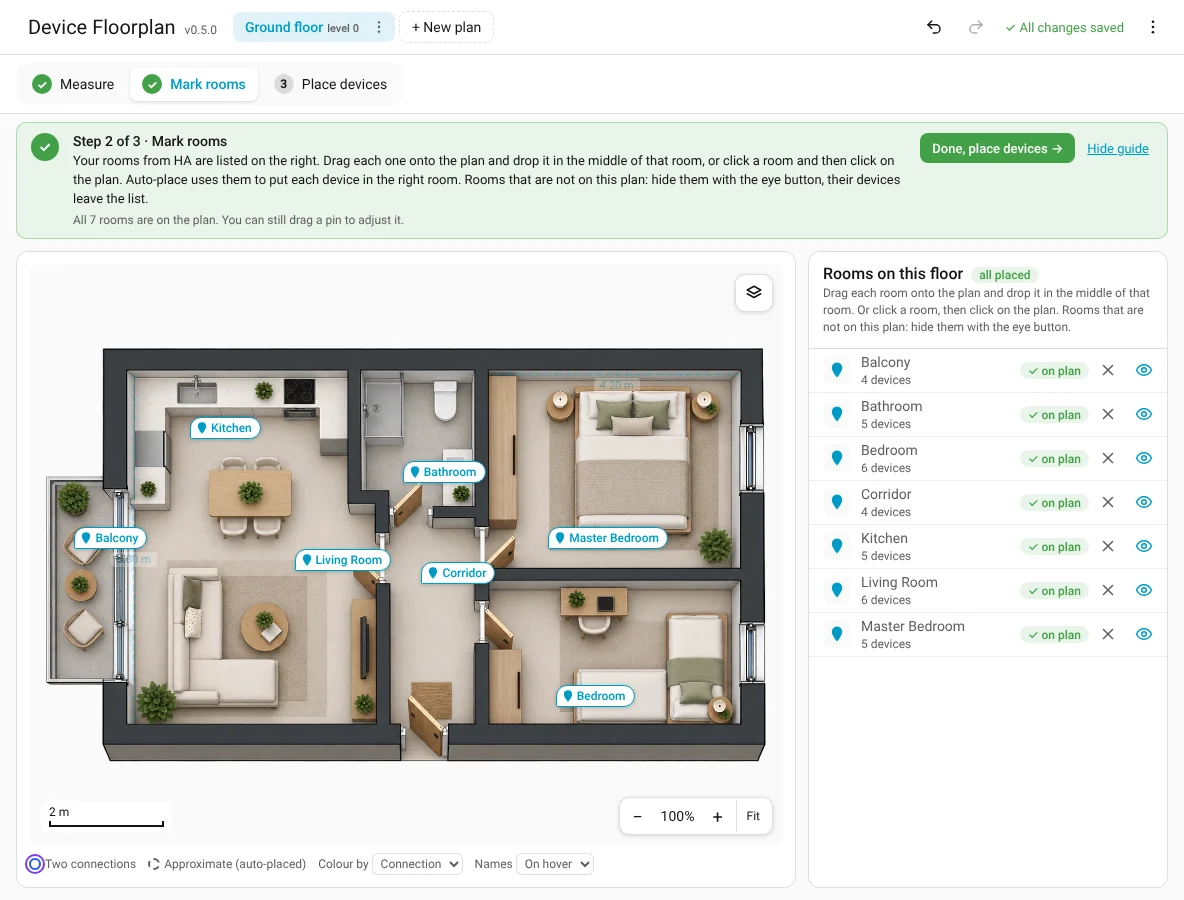
Drag a room name to adjust it. ✕ takes a pin off the plan. When all rooms are placed, Done, place devices → appears.
Room shapes (optional)
Each pinned room has a small Shape button. Press it and a four-corner shape appears around the room, with a small toolbox you can move around the plan:
- drag the corners onto the room's inner edges; edges snap straight when they're close to horizontal or vertical (hold Alt for a free angle);
- press and hold inside the shape and drag to move the whole shape;
- + in the middle of an edge adds a corner (L-shaped rooms), double-click a corner to remove it;
- Overlap or gap? Where two rooms are open to each other (an open-plan kitchen and living room, a corridor, a door), let their shapes overlap a little: light flows between them. Where there is a wall, leave a small gap: light stops there. All other rooms stay visible in their own colour while you draw, so you see where shapes meet;
- Reset to rectangle, 🗑 Remove, Done.
The shape is see-through while you draw. After Done it hides and the button turns green (Shape ✓). A light now stays inside its room and the rooms that overlap with it: the glow no longer shines through walls into the next room or outside the home. Rooms without a shape work as before; Done, place devices → never waits for shapes.
Rooms that are not on this plan
A balcony on another floor, a garage in a separate building… The eye on each room shows whether it is on this plan: an open eye means visible. Press it to hide the room:
- its devices leave the device list, the counts and Auto-place;
- they wait in a collapsed Hidden rooms group at the bottom of the list, where you can still place one as an exception;
- a hidden room shows a crossed eye; press it to bring the room back.
If the room already has devices on the plan, you're asked whether to keep them or take them off too:
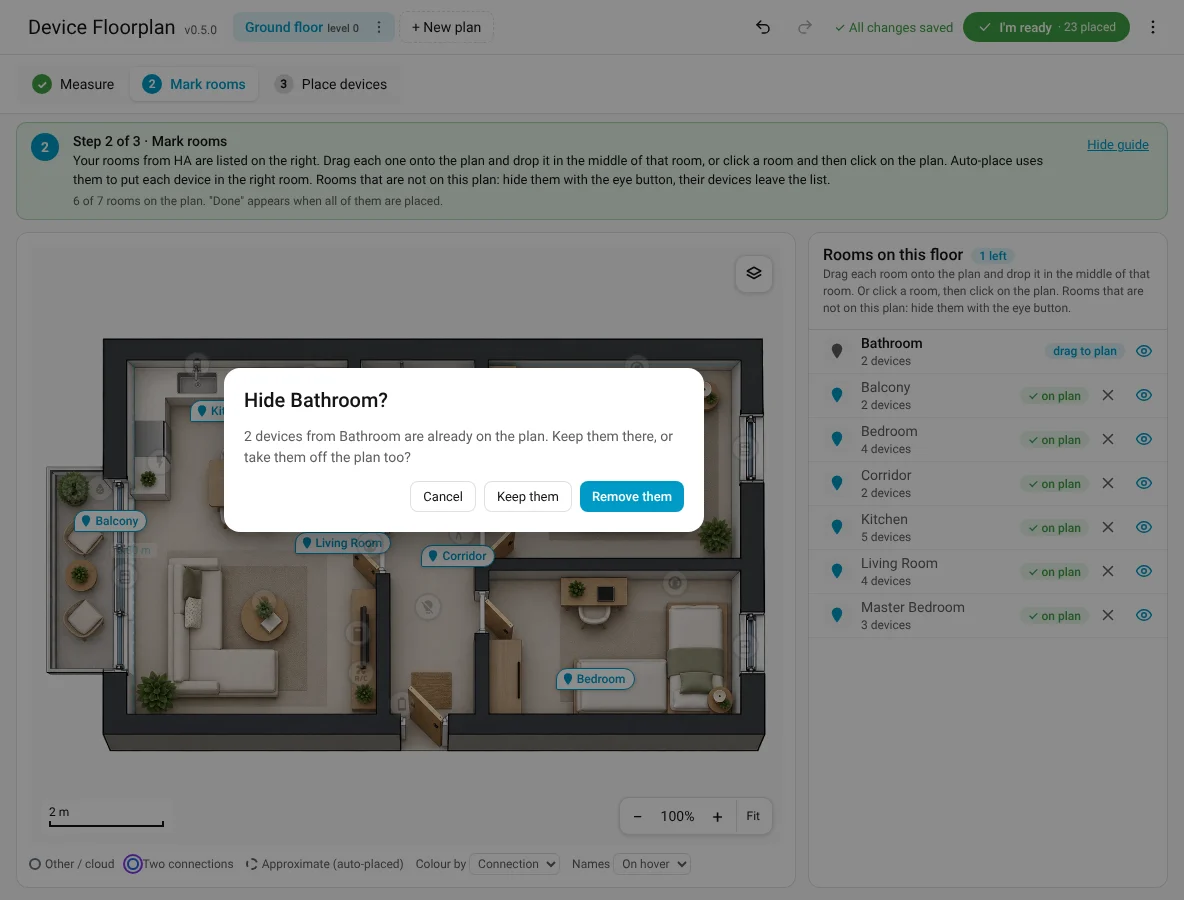
Hidden rooms are stored in Home Assistant per plan, and undo works.
No rooms?
Rooms come from Home Assistant areas. The guide box links straight to them:
- No areas yet: Create areas opens Home Assistant's Areas page (your Editor work is saved), How areas work ↗ opens Home Assistant's docs.
- Areas, but no devices in them: your rooms are listed under Empty rooms. Open a device in Home Assistant and choose its area, then come back.
Or skip this step and place devices by hand.