
3 · Place devices
Pick a device, put it where it really is. The list on the right is your to-do list; the plan fills up as you go.
The device list
 On planPlaced and confirmed. The row is dimmed.
 ApproxAuto-placed: right room, not the exact spot yet.
 Type · Connection · StatusFilters: choose what you work on. 7 left or ✓ shows progress.
 ▴Hides search and filters; one line shows what's active.
 ⓘHome Assistant's details of the device.
 I'm ready · 37 placedAppears after the first device: put the plan on a dashboard.
Search finds everything: a name, room, model, manufacturer, an entity name or an entity id (paste binary_sensor.dryer_running). While you search, filters, skipped devices, hidden rooms and other floors are ignored, and every match shows its status and action.
More about the list
- In each filter, All · None selects everything or nothing; the ✕ on an active filter clears just that one; Clear filters resets them all. Placed devices that don't match stay visible, faded (switch them off under Layers → Devices outside the filter).
- Group by Room, Type or Connection. Devices from all floors shows devices of other floors too (floor plans only).
- With a filter or search active, Skip the N not on the plan skips all shown devices that aren't placed. Placed devices are never skipped this way; every skip can be undone.
Three ways to place
| Way | How |
|---|---|
| Auto-place | All devices shown in the list go next to their room pin, marked approximate. Respects your filters. |
| Click to place | Click a device in the list, then the plan. With then next ticked, the next device is picked. |
| Drag | Drag a row onto the plan, or a marker on the plan. |
Placing doesn't open the device's card, so the next device is right there: the new marker flashes and a message says ✓ … placed · Undo. Off the plan: drag the marker back onto the list. Zoomed in? Drag the plan to move around; a click still places.
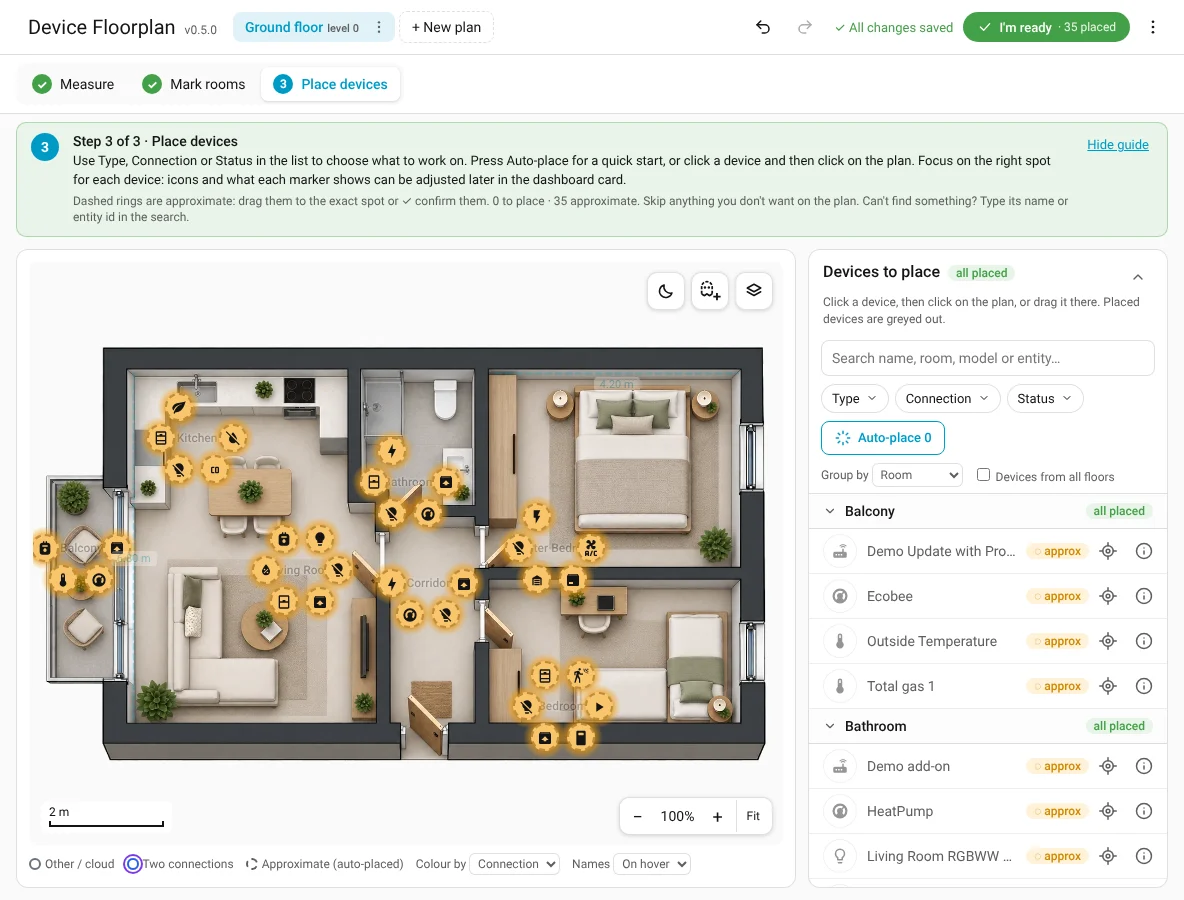
On the plan
 MarkerRing colour = connection (Zigbee orange, Wi-Fi blue…).
 Two connectionsDouble ring.
 ApproximateDashed ring with an amber glow. Drag it, nudge it with the arrow keys or press Confirm position.
 Same spotGrey count. Click it for the list of devices there.
 BondGreen ×N: several devices that are one thing.
 PhantomA combined value from several devices.
Same spot or bond?
Drop a device onto another one and it lands on exactly the same spot. Then a question appears and stays until you answer:
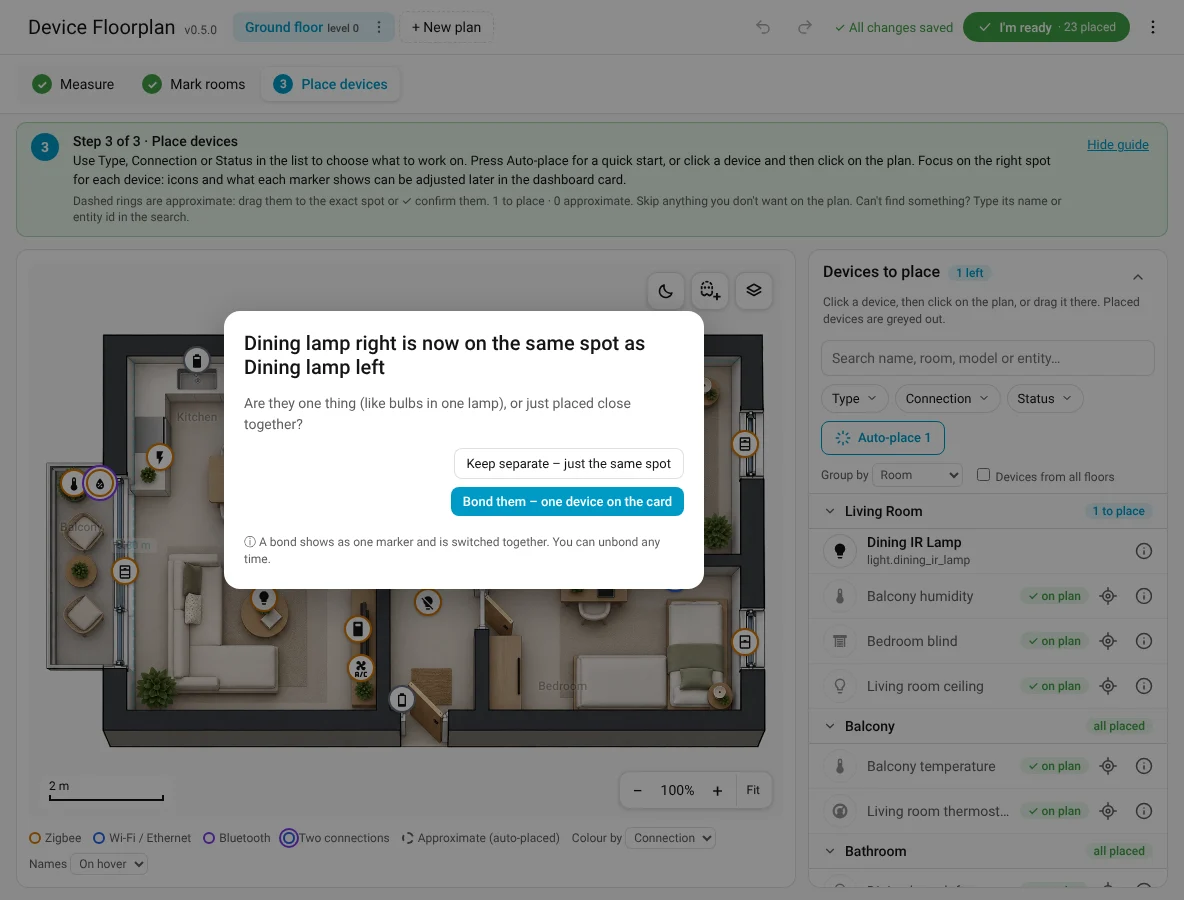
- Keep separate – just the same spot: two devices, a grey count. Two wall switches on one plate that drive different lamps.
- Bond them – one device on the card: one marker, a green ×N. Three bulbs in one lamp.
Changed your mind? Bond with … in a device's card asks again; the bond card has ✕ per member and Unbond all. All of it with Undo. More in Bonds.
The device card
Click a marker (or a placed device in the list) to open its card above the list. It starts simple:
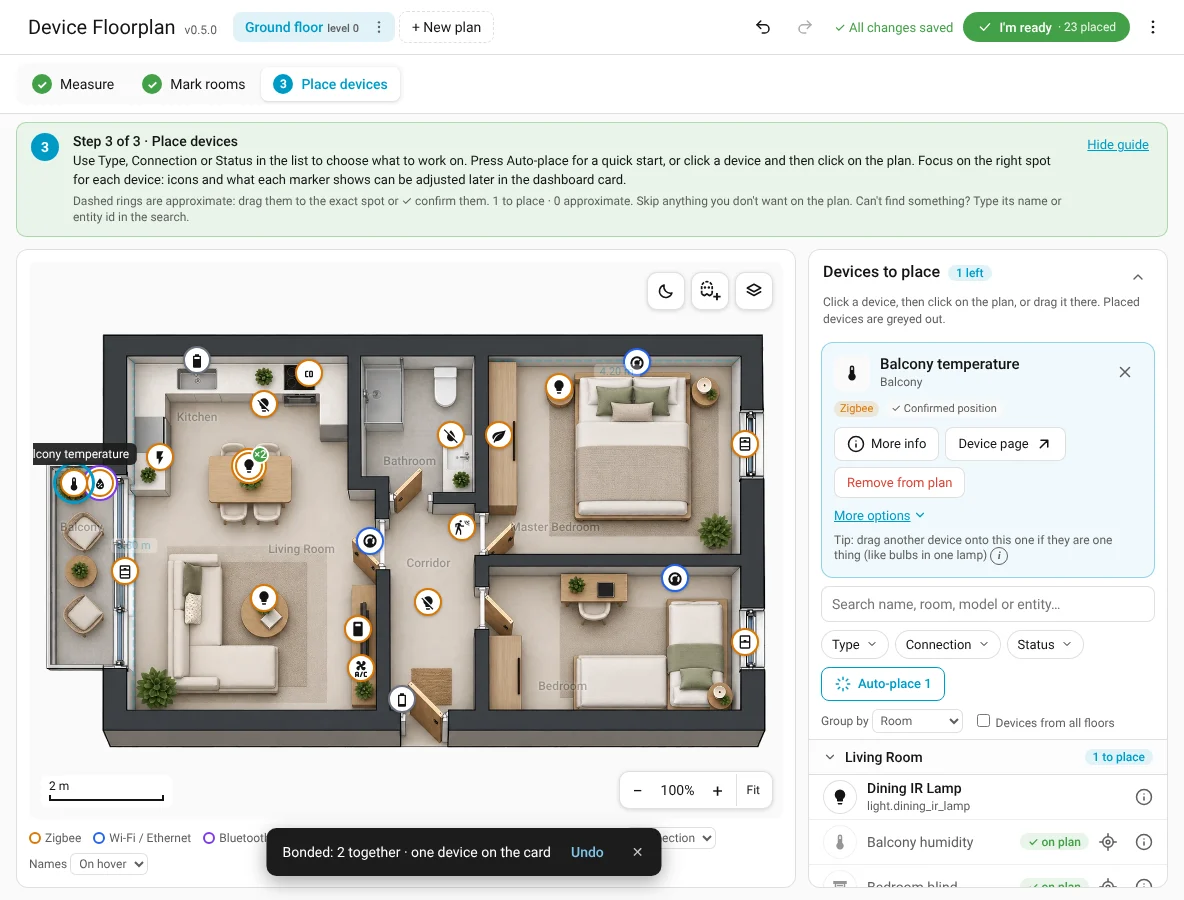
- Name, room, connection, status, Confirm position, More info, Device page, Remove from plan.
- Connected through … / N devices connect through it for hubs and bridges.
- 💡 Light on the plan for anything with a light: see Light shapes.
- 📍 Split: it controls something elsewhere: a relay behind the wall switch whose lamp is on the ceiling, a panel with two relays. See Split devices.
- More options ▾ (remembered): Skip this device, and Skip all N not on the plan from ‹integration› for software-heavy integrations (NAS, router, cloud).
What a marker shows, its icon and its tap are set on the dashboard card, not here: names in the Editor, looks on the card. See Edit markers on the plan.
A bond opens the bond card, a phantom the phantom card: see Bonds, phantoms & split devices.
Changed your mind? Get skipped devices back
Skipping changes nothing in Home Assistant, and it's easy to undo:
- Search finds skipped devices too: open one and press Add to plan, or drag its row onto the plan.
- The Status filter → Skipped lists them all.
- ⋮ (top right) → Choose devices again… adds whole categories back. Devices already on the plan stay where they are.
Helpers and entities without a device
Real appliances without a device in Home Assistant (SmartIR air conditioners, IR lamps and fans) are listed like devices when the entity has an area. Template sensors and other helpers are found by the search, under Entities without a device: drag one onto the plan and the card shows it at that spot.
Statuses
| Status | Meaning |
|---|---|
| To place | On your list, not on the plan yet. |
| Approx | Auto-placed, dashed ring. |
| Placed | Confirmed position. |
| On another floor | Placed on another floor plan. Move to this floor moves it. |
| New | Added to Home Assistant since your last visit. |
| Skipped | Not wanted on any plan. Nothing changes in Home Assistant. |
One marker per physical device
A device that is "connected via" another device and has no entities of its own (the Bluetooth side of an ESP32) is merged into it (its card says Includes its twin device). Devices that belong to another one, like a printer's filament unit or a NAS's drives, are bonded automatically: one row, one marker, a green ×N, Unbond if the guess is wrong. Hubs and bridges are not affected.