
The editor
The editor has a header with your floors, the three steps, a guide box, the plan, and a list on the right. It always fits the window: the plan grows or shrinks to use the space that is left, and the legend under it always stays visible.
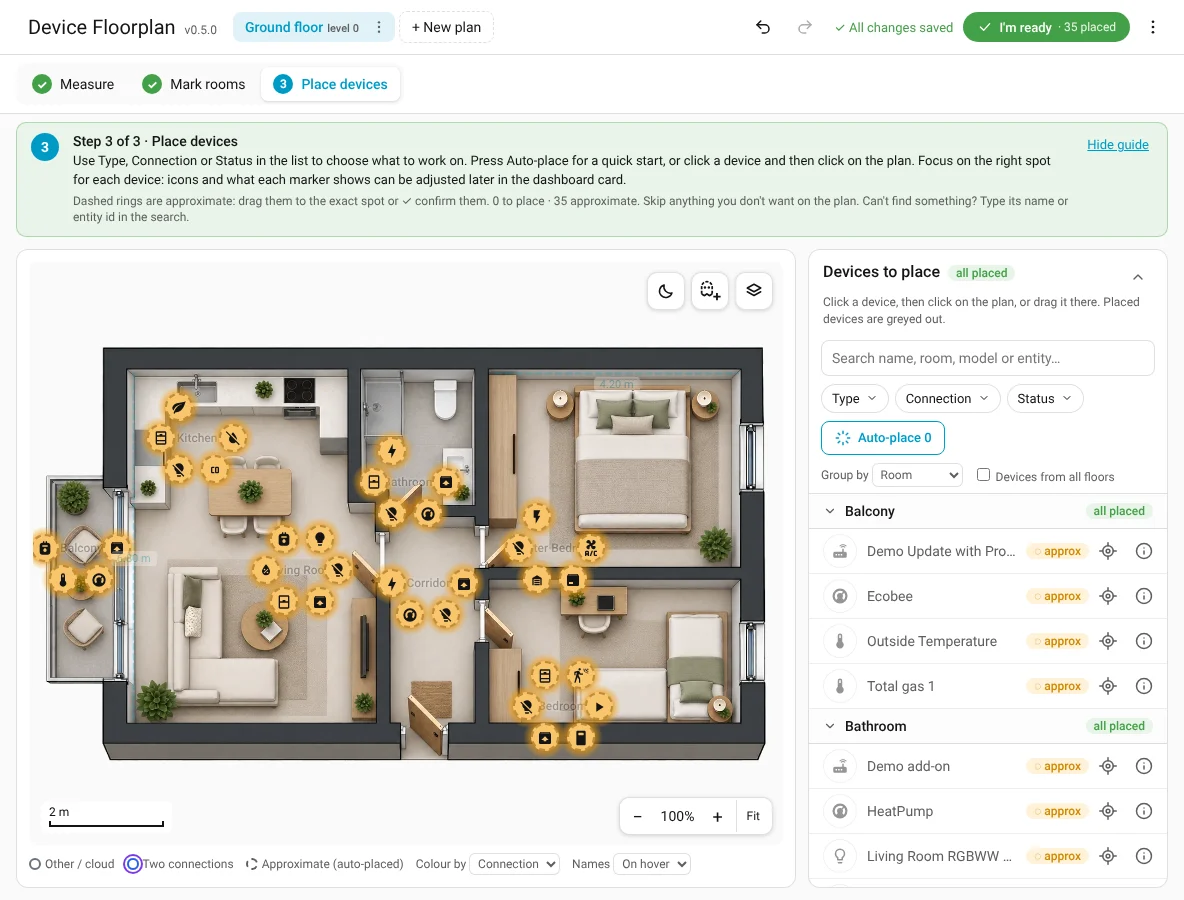
Header
- Floor tabs, sorted by level. The ⋮ inside a tab opens that floor's menu (settings, rename, replace image, export, delete). See Floors and plans.
- + New plan adds a floor or a view.
- Undo / Redo and the save status (Saving… / ✓ All changes saved). There is no Save button: everything is saved automatically.
- ✓ I'm ready appears after the first device is placed. See I'm ready.
- ⋮ on the far right: Show intro, Show/Hide step-by-step guide, Choose devices again…, and the version number (also shown next to the title).
Steps and guide
The numbered steps 1 Measure · 2 Mark rooms · 3 Place devices turn into a green ✓ when done. You can click them in any order.
The green box explains the current step and offers Skip or Next. Hide guide / Show guide next to the step tabs turns it off and on (it is remembered; also in the ⋮ menu). Every step opens with the whole plan visible.
The plan
Controls sit on the plan itself, in the corners:
| Corner | Control |
|---|---|
| Top right | Layers: show or hide measurements, rooms, devices, bonds, phantoms and light shapes. See Editor layers. In the Place step also the phantom button and the moon (see it at night). |
| Bottom right | Zoom: − / + in 25 % steps, Fit for 100 %. (The mouse wheel scrolls the page; it doesn't zoom.) |
| Bottom left | Scale bar, once the plan is measured. |
Drag an empty spot to pan when zoomed in. Markers keep their size when you zoom.
Bonds, phantoms and split devices
Drop a device onto another and the Editor asks whether they are one thing (bond) or just on the same spot. The phantom button creates a phantom, a combined value from several devices. A device in two places is a split device. All three are explained in Concepts; the small ⓘ next to them in the device cards gives a short reminder.
The list
The right column changes with the step: Measurements in step 1, Rooms on this floor in step 2, Devices to place in step 3. On narrow screens it moves below the plan.
Legend and display options
Under the plan: the colour legend, Colour by (Connection, Status or None) and Names (on hover, always or off).