
Floors and plans
Each plan is one picture: usually a floor of your home, or a free view (garden, a single room, a network overview). One card can show several floors.
Plan types
| This plan is | Level | Devices offered |
|---|---|---|
| A Home Assistant floor | Follows the floor's level in HA | Devices whose area is on that floor |
| A floor, by level number | The number you choose | All devices |
| Not a floor (a view) | – | All devices; a device can also be on other plans |
A device can be on one floor plan at a time. If you place it on another floor, Move to this floor moves it. Views allow duplicates.
A home with several floors
- One plan per floor. In the Floorplan Editor, + New plan for each floor and pick its Home Assistant floor under This plan is. The floor tabs are sorted by level.
- Rooms on floors in Home Assistant (optional but helpful): with your areas assigned to floors (Settings → Areas, labels & zones), each plan offers only the devices of its floor and Auto-place works per floor. Without it, every plan offers all devices.
- Place devices on each floor. A device placed on the ground floor shows On Ground floor in the other floors' lists; Devices from all floors shows them, Move to this floor moves one.
- One card for all floors. At the top of the card editor, the floor tabs 1 · 2 · +: add a tab per floor and choose its plan. On the card, the floor button under Layers switches floors (or swipe up / down).
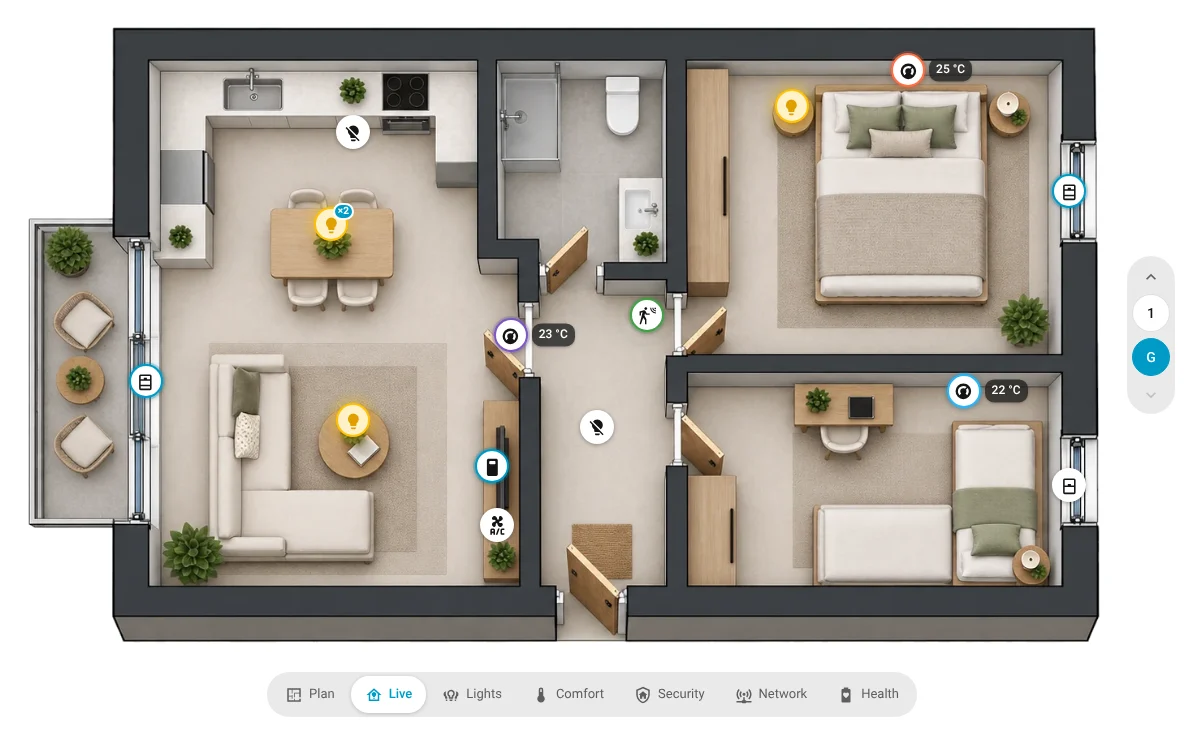
- Switch from outside (optional):
floor:indevice_floorplan.show_overlay, or?floor=1in a link. See Switch the overlay from other cards.
Device settings in the card (icon, name, tap, overlays) belong to the device and apply on every floor.
The floor menu
The ⋮ inside a floor tab (always visible on the selected tab, on hover for the others):
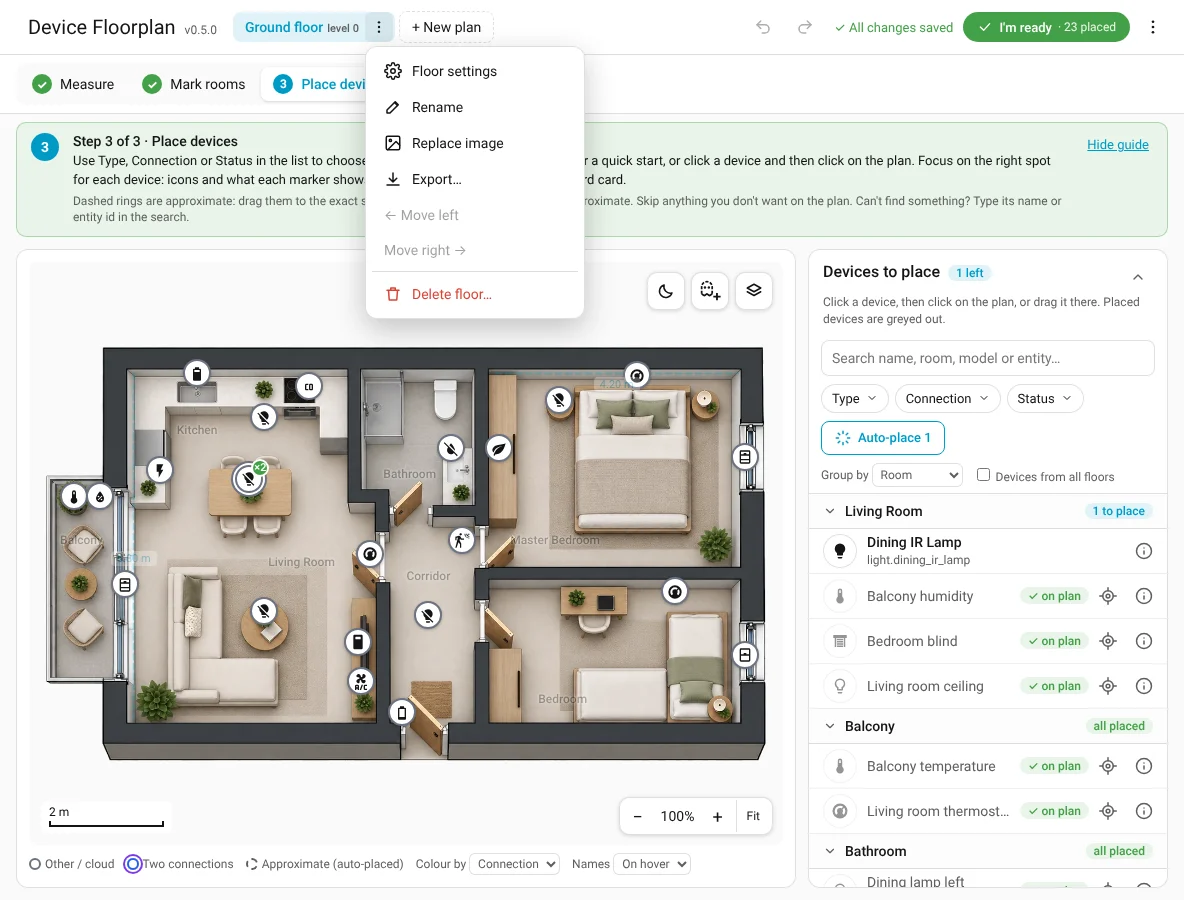
- Floor settings: name, what the plan is, image type, image, and the guide.
- Rename.
- Replace image: a new picture keeps all positions (they are stored as percentages of the image).
- Export…: CSV, JSON backup or PNG. See Export and import.
- Move left / right: for views. Floors are ordered by level.
- Delete…: removes the plan, its image and its positions, plus its device and entities in Home Assistant. Your devices themselves are not touched.
A small dot on a tab means that floor has new devices waiting.
The app menu
The ⋮ on the far right of the header: Show intro, Show/Hide step-by-step guide (also hides the ⓘ tips), and Choose devices again… (reopens What should go on your plan?).