
Editor layers
The plan in the Floorplan Editor has layers: measurements, rooms, devices, plus bonds, phantoms and light shapes. Each step shows its own layer in full and the others faded, so your earlier work is always visible but never in the way.
Not the same as overlays
These are the Editor's layers. On the dashboard, the card's overlays (Live, Lights, Comfort…) and the Layers button of its Network overlay are something else: see Dashboard card.
| Step | Measurements | Rooms | Devices |
|---|---|---|---|
| 1 · Measure | Full, editable | Faded | Faded |
| 2 · Mark rooms | Faded | Full, draggable | Faded |
| 3 · Place devices | Faded | Faded (names only, under the markers) | Full |
Faded layers ignore clicks: you can click straight "through" a faded device to set a measurement point.
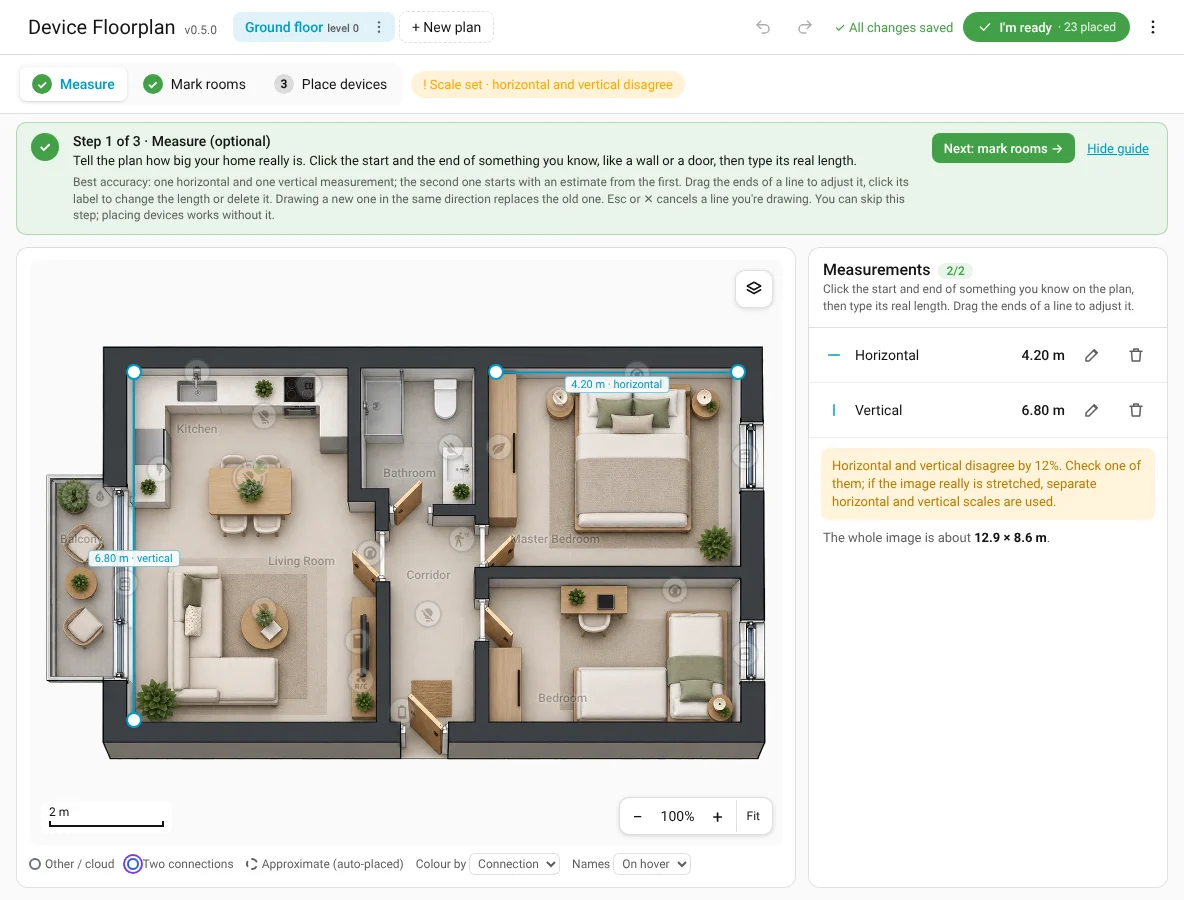
The Layers button
The button in the top-right corner of the plan opens Show on the plan. The eye next to a layer switches it off completely; the current step's layer is always on. Your choice is remembered in this browser.
| Layer | Off means |
|---|---|
| Measurements, Rooms, Devices | Hidden in every step except their own. |
| Bonds | Bonded markers hidden (handy to see what's left). |
| Phantoms | Phantom markers hidden. |
| Light shapes | Off by default: only the selected light shows its shape. On: every light's shape is outlined. |
| Devices outside the filter | (Place step) Placed devices that don't match the list's filters are hidden instead of faded. |
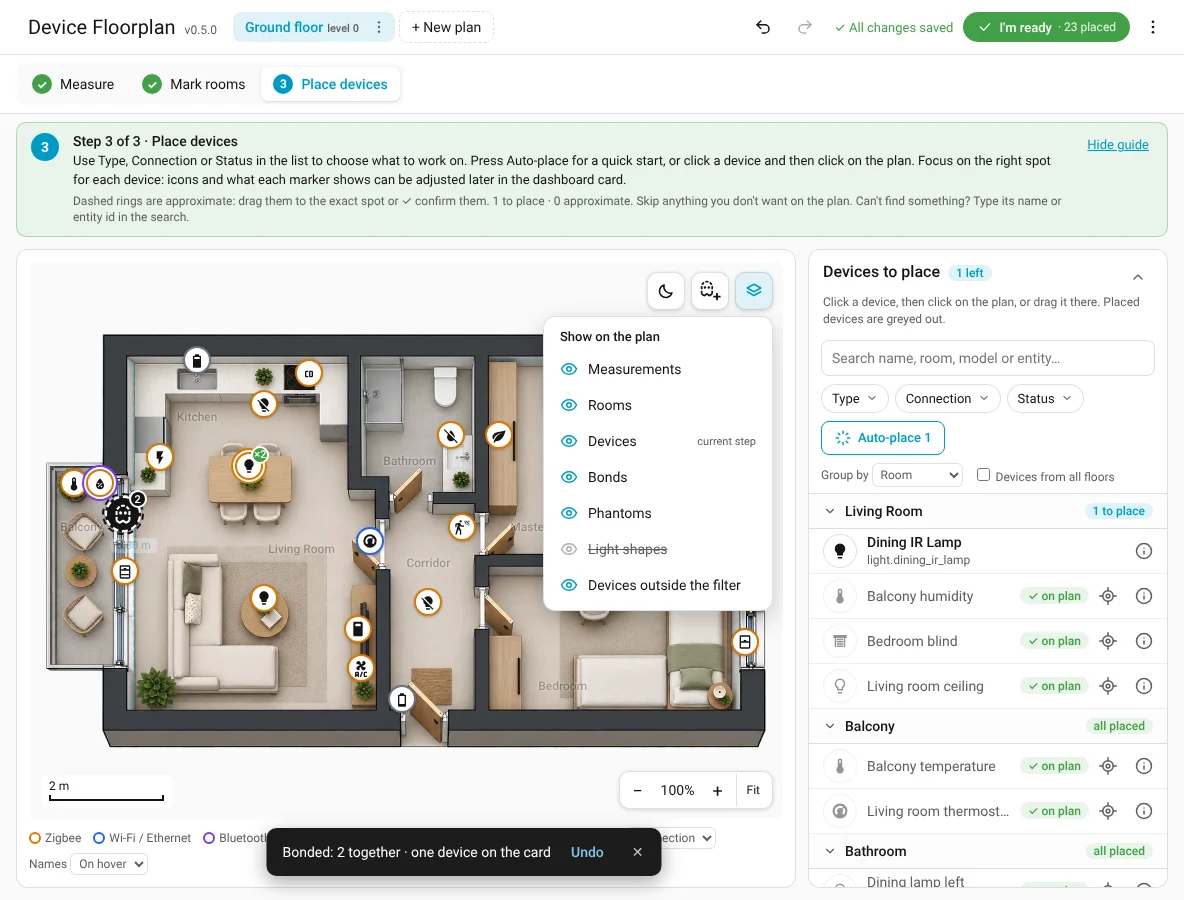
Next to Layers, in the Place step: the phantom button (new phantom) and the moon (see it at night).
Going back to an earlier step never deletes anything: it only changes what is shown in full.