
1 · Measure
Measuring is optional. It gives the plan a real scale, so the scale bar, distances and the exported positions in metres are correct. Placing devices works without it.
Draw a measurement
- Click the start of something you know the length of: a wall, a door, a room.
- Move the mouse and click the end. Lines snap straight when they are nearly horizontal or vertical (hold Shift to stop that).
- Type the real length in metres and press Set scale (or Enter). For the second direction the field already holds an estimate from the first measurement: type the real length over it, or keep it.
Changed your mind? ✕ in the orange box or Esc discards the line you're drawing. Clicking a saved line's label always opens it for editing, even while you're drawing a new one.
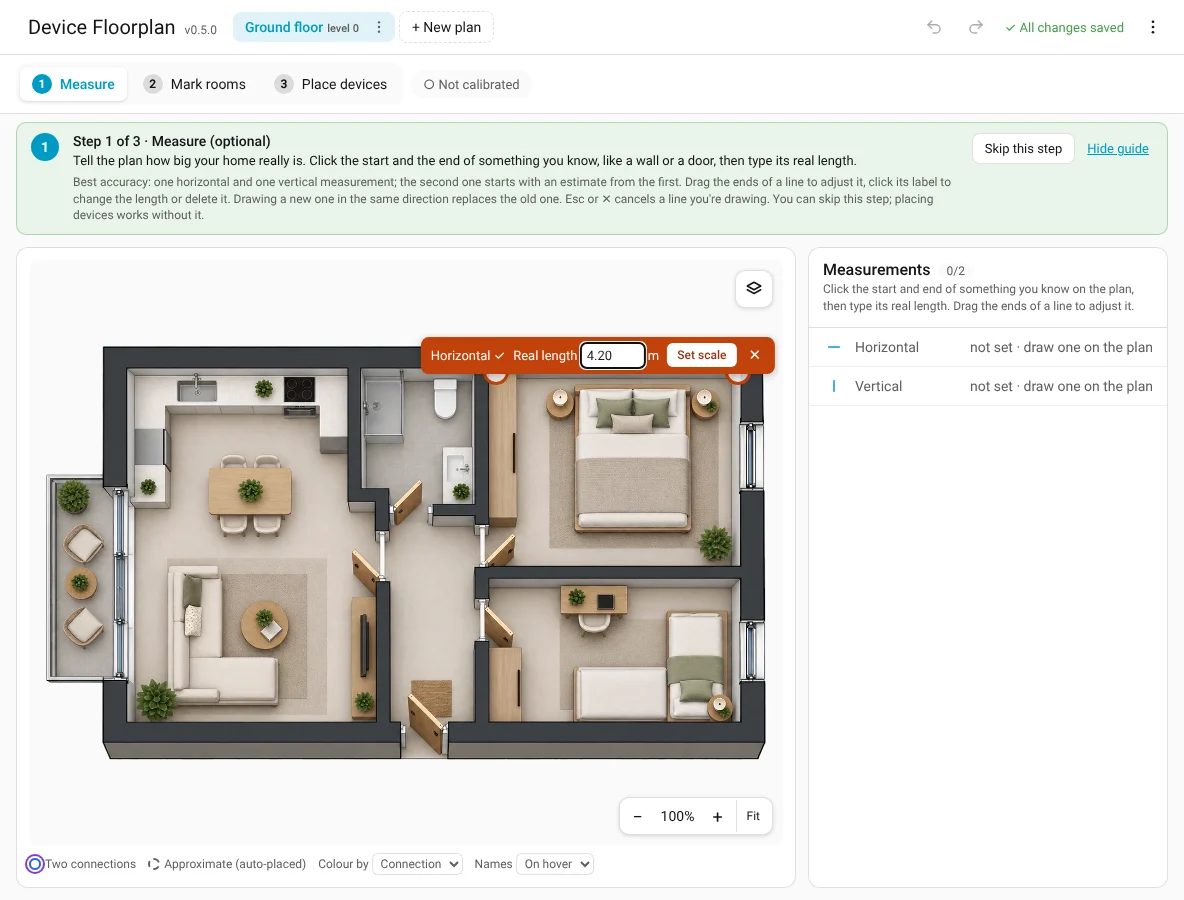
For the best accuracy, draw one horizontal and one vertical measurement. Use long walls: the longer the line, the smaller the error.
Change or delete a measurement
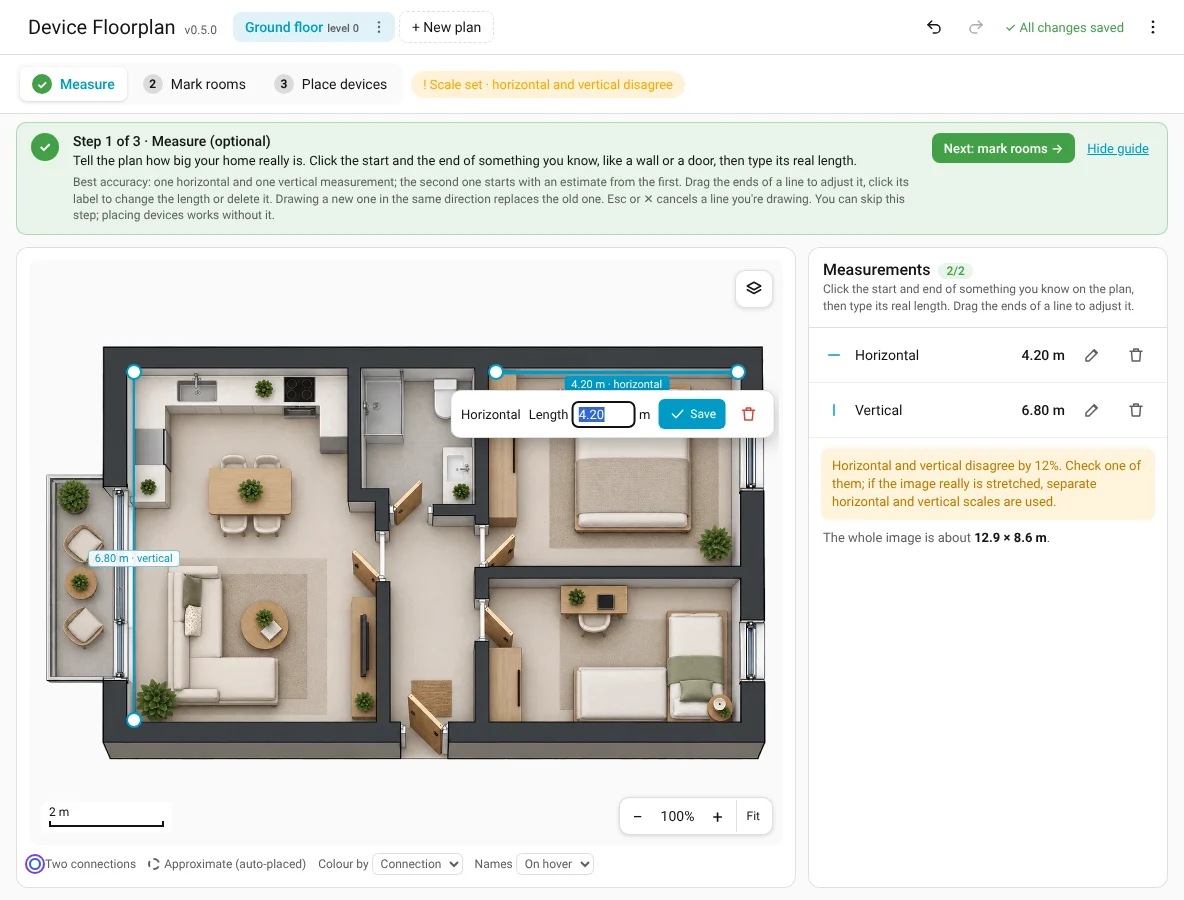
- Drag the round ends of a line to adjust it.
- Drag the label to move the whole line.
- Click the label to change the length or delete it (🗑).
- The Measurements list on the right has ✎ and 🗑 for each direction.
- Select a line and press Delete to remove it.
Drawing a new line in the same direction replaces the old one; a message with Undo appears.
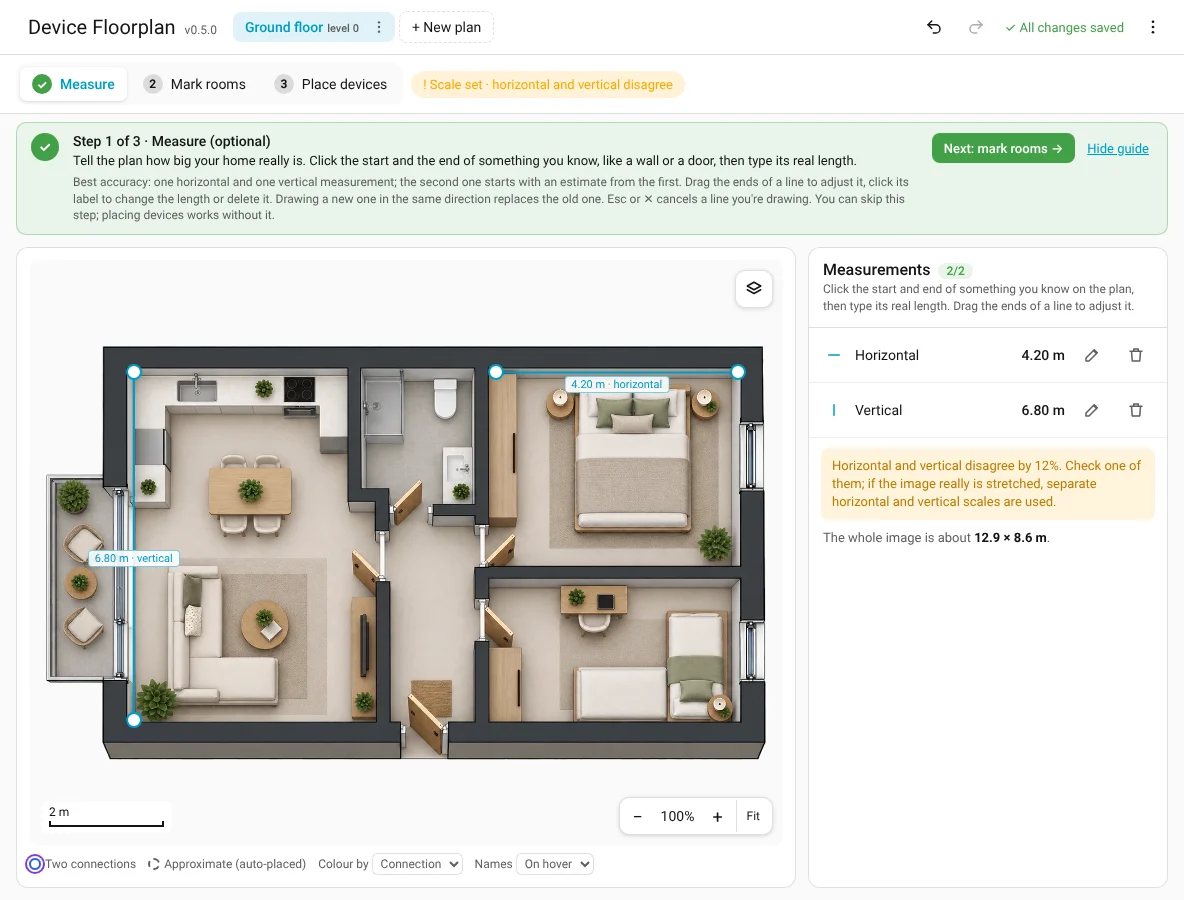
Horizontal and vertical disagree
If the two measurements give scales that differ by more than 5 %, the list shows a warning. Usually one line is slightly off: check both. If the image really is stretched (common with AI-generated or scanned plans), Device Floorplan simply uses a separate horizontal and vertical scale.
Angled images
For an Angled view image, measuring is turned off: perspective makes distances meaningless.